



How to setup SeerBit for Zoho Books
Zoho Books is an online accounting software that streamlines and manages your finances, automates business workflows, and enhances collaboration across various departments. With SeerBit Payments Extension for Zoho Books, you can now send invoices and receive instant payments using SeerBit in Nigeria, Ghana, South Africa, Cote D’Ivoire, Tanzania, Uganda, Kenya and Zambia.
Before you begin, ensure that you have an active Zoho Books account, An active SeerBit account and admin access to both platforms.
Integration Setup
Step 1: Install the SeerBit Plugin
- The SeerBit extension is available in the Zoho Books app marketplace. Visit the marketplace via this link.
- Click on the Install button to begin the installation process.
- A dialog box will appear where you need to accept the terms of service, select your Zoho organization, and then click Install.
Step 2: Access SeerBit Plugin Settings
- Navigate to Settings in Zoho Books.
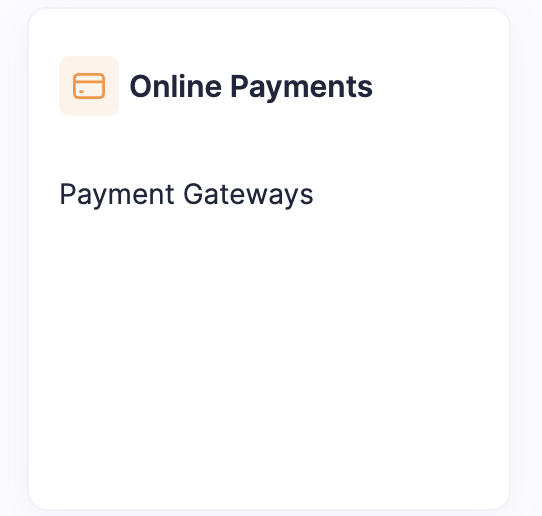
- Select Online Payments from the options available.
- From the list of payment methods, find and select SeerBit Payment Gateway.
- Click on the Edit button to configure the settings.
Step 3: Enter Your API Keys
- In the SeerBit plugin settings, you will need to enter your Secret Key and Public Key.
- These keys can be found in your SeerBit Dashboard. If you haven't generated them yet, log in to your SeerBit account and create your API keys.
- Enter the keys into the respective fields and save your configuration.

Step 4: Switch to Live Keys
- Initially, you might be using test keys for setup and testing purposes.
- Once you are ready to accept real payments, remember to replace your test keys with live keys in the SeerBit plugin settings.

Making Payments
Step 1: Creating and Sending Invoices
- On your Zoho Books dashboard, navigate to Sales > Invoices.
- Create a new invoice or select a draft invoice you wish to send.
- Fill in the customer's and invoice details as required.
- Ensure that SeerBit is selected as a payment option at the bottom of the invoice form.

Step 2: Customer Payment
- When the invoice is sent, the customer will have the option to pay using SeerBit.
- Once the payment is completed, the invoice status will be automatically updated and marked as paid in your Zoho Books dashboard.
Managing Transactions
Viewing Transactions
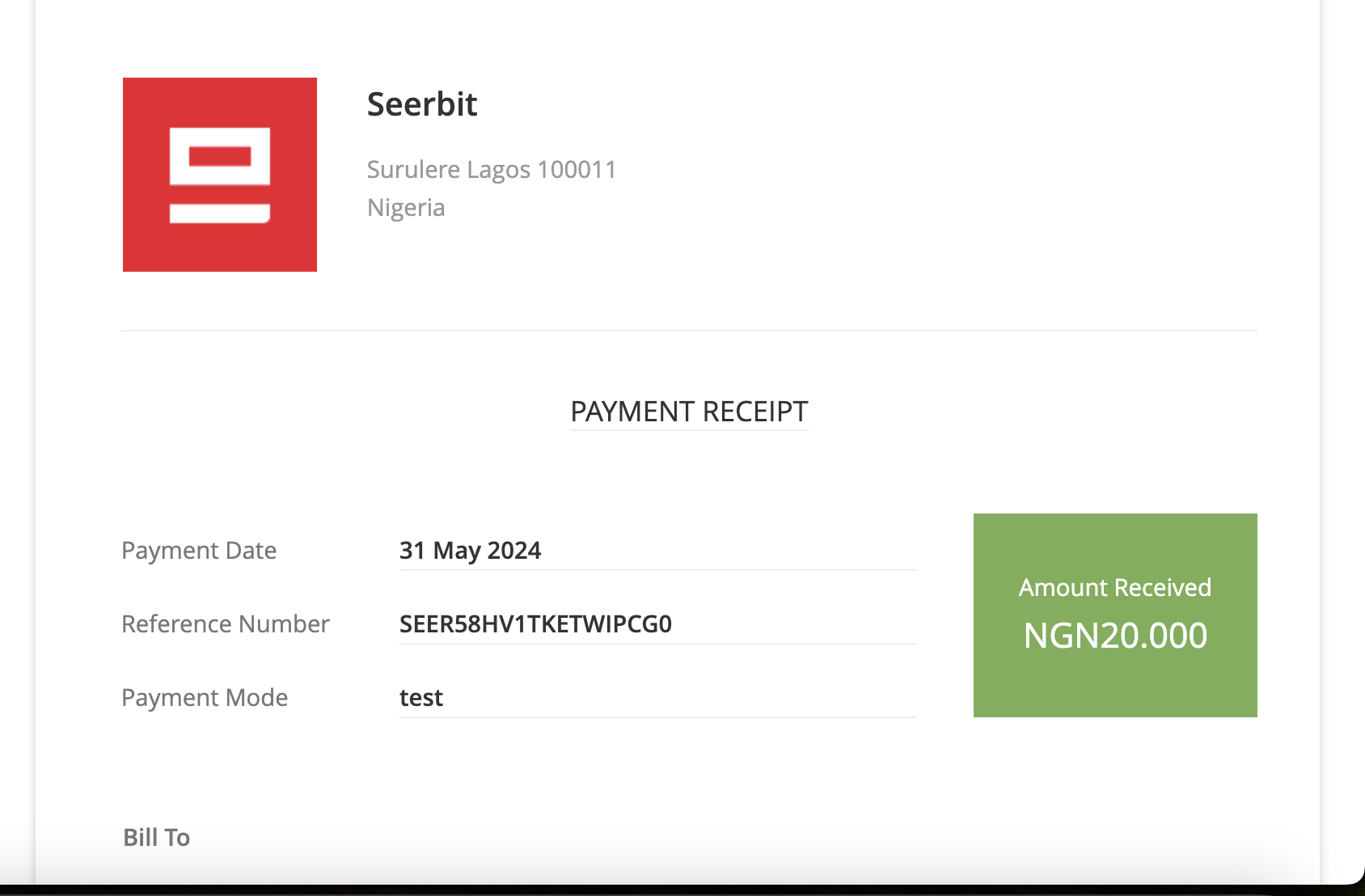
- Navigate to the Payments Received section within Zoho Books.
- View all paid invoices processed via SeerBit Payment Gateway.
- Ensure that SeerBit is selected as a payment option at the bottom of the invoice form.
Refunds and Adjustments
- To process a refund, initiate a dispute on your SeerBit dashboard.
- Alternatively, you can send a ticket to support@seerbit.com with the necessary transaction details.
Trouble Shooting
Common Issues
- Connection Errors: Ensure that your internet connection is stable.
- Invalid Credentials: Double-check your API keys and login details.
- Payment Failures: Verify any restrictions or limits on your SeerBit dashboard.
Contact Support
- SeerBit Support: For unresolved issues, contact SeerBit support at support@seerbit.com.
- Zoho Books Support: For Zoho Books-related issues, reach out to Zoho Books support at support@zohobooks.com.
Support
For further assistance you can reach out to:
- SeerBit Support: support@seerbit.com
- Zoho Books Support: support@zohobooks.com
Zoho Integration Case Studies
This guide explores the benefits of integrating Zoho, and SeerBit Invoices and Checkout Solutions in streamlining your operations, boost efficiency, and ultimately, fuel your business success.
Case Study 1:
Simplified Invoicing and Faster Payments for Magaji & Co
Magaji & Co is a law firm that runs their operations across Africa.
Challenge
Magaji & Co's invoicing process was time-consuming and inefficient. They relied on manual invoicing and chasing clients for payments, leading to delays in cash flow.
Solution
Magaji & Co integrated Zoho Invoice with SeerBit. This allowed them to create professional invoices with online payment options directly integrated into the invoice.
Results
They experienced a 30% reduction in time spent on invoicing and a significant improvement in client payment times. They can now get paid faster and focus on delivering exceptional design services.
Case Study 2:
Secure Checkout and Increased Sales for CarFix
CarFix is a mobile car repair shop offering in-store and online repair services.
Challenge
Carfix previously relied on cash payments only, limiting their customer base and online sales potential. They wanted to offer a secure and convenient way for customers to pay for repairs.
Solution
CarFix integrated Seerbit with their Zoho Checkout. This allowed them to accept secure online payments via SeerBit.
Results
CarFix saw a 20% increase in online repair sales and a more streamlined checkout process for in-store customers. They can now cater to a wider customer base and improve their overall sales volume.
Key Benefits
Integrating Zoho with SeerBit's Invoicing and Checkout Solutions have immense benefits to revolutionalizing businesses and some of these are discussed below
- Pan African: Receive payments seamlessly from your customers across Africa (Ghana, Nigeria, Kenya, Senegal, Uganda, Tanzania, Cote D'Ivoire, Burkina Faso etc)
- Improved Payment Efficiency: SeerBit Payments provides diverse payment options within invoices eliminate the need for chasing payments and manual collections.
- Payment FailuresEnhanced Customer Experience: SeerBit provides secure and convenient payment options at checkout and for invoices lead to increased customer satisfaction.: Check for any restrictions or limits on your SeerBit dashboard
- Increased Sales Potential: Accepting online payments via SeerBit opens your business to a wider customer base.
- Streamlined Business Operations: Integrating Zoho with SeerBit saves time and reduces manual work involved in invoicing and checkout.
Introduction
This User Guide provides detailed instructions for end-users on how to use the integration between SeerBit and Zoho Inventory. It covers everything from logging in and navigating the dashboard to processing payments and managing orders.
Getting Started
Logging In
- Access Zoho Inventory: Log in to your Zoho Inventory account using your credentials.
- Navigating to the Integration: After logging in, go to the Integrations tab to access SeerBit.
Navigating the Dashboard
- Dashboard Overview: The dashboard provides an overview of your recent transactions, payment statuses, and inventory levels.
- Key Sections:
- Orders: View and manage all customer orders.
- Payments: Track payments processed through SeerBit.
- Reports: Access detailed reports on payments and inventory.
Using the Integration
Creating and Managing Orders
- Create a New Order: Go to the Orders tab and click on New Order. Enter the customer and product details.
- Process the Order: Select SeerBit as the payment method and finalize the order.
Processing Payments
- Payment Options: Choose from SeerBit’s available payment methods
- Complete Payment: Confirm the payment details and process the payment. The status will update automatically.
Viewing Payment Status
- Order Status: Check the Orders tab to view the payment status (e.g., Paid, Pending, Failed).
- Payment Details: Click on an order to see detailed payment information, including transaction ID and date.
Advanced Features
Scheduled Payments
- Set Up Scheduled Payments: In the payment options, choose Scheduled Payments to set up future payments for orders.
Recurring Billing
- Enable Recurring Billing: For subscription-based products, enable Recurring Billing during the order creation process.
- Manage Subscriptions: Access subscription details and manage billing cycles from the Subscriptions tab.
Refunds and Disputes
Initiating a Refund
- Locate Payment: Go to the Payments section and select the payment you want to refund.
- Initiate Refund: Click on Refund and enter the amount to refund.
- Confirm Refund: Review the details and confirm the refund. The refund status will be updated in Zoho Billing.
Handling Disputes
- Dispute Notification: If a payment is disputed, you'll receive a notification in Zoho Billing.
- Review Dispute: Click on the dispute notification to view details.
- Respond to Dispute: Provide the necessary information and respond through Zoho Billing to resolve the dispute.
Troubleshooting and FAQs
How do I update my payment details?
- Go to the Payments tab and update the payment method for future transactions.
Troubleshooting and FAQs
- SeerBit Support: support@seerbit.com
- Zoho Inventory Support: support@zoho.com
- User Resources: Access tutorials, FAQs, and more in the Help section.
Introduction
This Admin Guide provides comprehensive instructions for administrators responsible for managing the integration between SeerBit and Zoho Inventory. It covers setup procedures, user management and ongoing maintenance to ensure the smooth operation of the payment system.
Admin Responsibilities
Setting up the Integration
As an admin, your primary responsibility is to configure and maintain the integration between Zoho Inventory and SeerBit. This includes setting up API connections, managing webhooks etc
Managing Users and Permissions
- User Roles: Assign appropriate roles to users within your Zoho Inventory based on their responsibilities.
- Permissions: Ensure that only authorized personnel have access to sensitive payment data and administrative functions.
Monitoring Transactions
- Transaction Reports: Regularly review transaction reports in your Zoho inventory to ensure that all payments are processed correctly.
- Alerts and Notifications: Set up alerts for failed payments or suspicious activity to respond promptly.
Detailed Setup Instructions
API Configuration
- Access API Settings: Log in to SeerBit dashboard and navigate Account. Go to settings to view your API keys
- Generate API Keys: Copy public and secret keys from dashboard
- Input API Keys into Zoho Inventory: In Zoho Inventory, go to Settings > Integrations and enter the API keys in the provided fields.
Webhook Management
- Configure Webhooks in SeerBit Dashboard: Set up webhooks to send real-time payment updates to Zoho Inventory. Go to accounts, then settings and select webhooks. Input your webhook url.
- Verify Webhook URLs: Ensure that the webhook URLs are correctly entered and that the endpoints are secure and functional.
- Test Webhook Functionality: Run tests to verify that payment status updates are correctly received in Zoho Inventory.
Security Best Practices
- API Key Management: Regularly rotate API keys and avoid sharing them unnecessarily.
- Data Encryption: Ensure that all sensitive data, including payment details, is encrypted in transit and at rest.
- Access Control: Implement strict access control policies to limit who can access the integration settings.
Ongoing Maintenance
Regular Audits
- Transaction Audits: Conduct periodic audits of payment transactions to identify any discrepancies or irregularities.
- User Activity Monitoring: Review user activity logs to ensure that all actions are authorized and in compliance with company policies.
System Updates
- Software Updates: Keep Zoho Inventory and SeerBit systems updated with the latest software versions to maintain security and functionality.
- Integration Testing: After any major update, test the integration to ensure that it continues to function as expected.
Troubleshooting and Support
Common Admin Issues
- API Connection Errors: Double-check API keys and ensure that the connection between Zoho Inventory and is active.
- Webhook Failures: Verify that webhook URLs are correctly configured and that the server is receiving and processing webhook requests.
Contact Support
- SeerBit Support: support@seerbit.com
- Zoho Inventory Support: support@zoho.com
FAQs
How do I reset API keys
- Access the API settings (under Accounts) in your SeerBit dashboard and generate new API keys. Click on reset keys. Ensure to update these keys in Zoho Inventory.
How do I monitor for unauthorized access?
- Regularly review access logs and set up alerts for any unusual or unauthorized activity.
Introduction
This Help Document is designed to assist users in effectively utilizing the integration between SeerBit and Zoho Inventory. It provides quick reference for common tasks and troubleshooting tips.
Getting Started
Accessing the Integration
- Log in to Zoho Inventory: Enter your credentials to access your account.
- Navigate to Integrations: From the dashboard, click on the Integrations tab to access SeerBit.
Basic Navigation
- Orders: View and manage customer orders.
- Payments: Track and process payments
- Reports: Access detailed reports on payments and inventory.
How to Process Payments
Step-by-Step Guide
- Create a New Order: Go to the Orders tab, click on New Order, and enter the required details.
- Select Payment Method: Choose SeerBit as the payment method.
- Confirm Payment: Review the payment details and click Process Payment to complete the transaction.
Handling Payment Issues
- Failed Payments: If a payment fails, verify the payment details and try again. Ensure that the customer’s payment information is correct.
- Pending Payments: Monitor pending payments and follow up with customers if necessary.
- Disputed Transactions: In case of a dispute, review the transaction details and contact support if needed.
Managing Orders
Creating and Updating Orders
- New Orders: Go to the Orders tab, click New Order, and fill in the customer and product details.
- Order Updates: To update an existing order, select the order from the list and click Edit.
Cancellations
- Cancelling Orders: If an order needs to be canceled, select the order, click Cancel, and confirm the cancellation.
Advanced Features
Scheduled Payments
- Setting Up: Choose the Scheduled Payment option when processing an order. Set the desired payment schedule and confirm.
- Managing: View and manage scheduled payments from the Payments tab.
Recurring Billing
- Setting Up Recurring Billing: For subscription-based products, enable Recurring Billing during order creation.
- Managing Subscriptions: Access and manage subscriptions from the Subscriptions tab.
FAQs
How do I update my API keys?
- Go to the Integrations tab in Zoho Inventory, enter the new API keys, and save the changes. You can reset your Seerbit API keys on the SeerBit dashboard by going to Accounts >> Settings>> API Keys
What do I do if a payment is stuck in pending?
- Contact support for assistance if the payment does not resolve automatically.
Contact Support
- SeerBit Support: support@seerbit.com
- Zoho Inventory Support: support@zoho.com
- Additional Resources: Access guides, tutorials, and more in the Help section of Zoho Inventory.
Zoho Integration Case Studies
This guide explores the benefits of integrating Zoho, and SeerBit Invoices and Checkout Solutions in streamlining your operations, boost efficiency, and ultimately, fuel your business success.
Case Study 1:
Simplified Invoicing and Faster Payments for Magaji & Co
Magaji & Co is a law firm that runs their operations across Africa.
Challenge
Magaji & Co's invoicing process was time-consuming and inefficient. They relied on manual invoicing and chasing clients for payments, leading to delays in cash flow.
Solution
Magaji & Co integrated Zoho Invoice with SeerBit. This allowed them to create professional invoices with online payment options directly integrated into the invoice.
Results
They experienced a 30% reduction in time spent on invoicing and a significant improvement in client payment times. They can now get paid faster and focus on delivering exceptional design services.
Case Study 2:
Secure Checkout and Increased Sales for CarFix
CarFix is a mobile car repair shop offering in-store and online repair services.
Challenge
Carfix previously relied on cash payments only, limiting their customer base and online sales potential. They wanted to offer a secure and convenient way for customers to pay for repairs.
Solution
CarFix integrated Seerbit with their Zoho Checkout. This allowed them to accept secure online payments via SeerBit.
Results
CarFix saw a 20% increase in online repair sales and a more streamlined checkout process for in-store customers. They can now cater to a wider customer base and improve their overall sales volume.
Key Benefits
Integrating Zoho with SeerBit's Invoicing and Checkout Solutions have immense benefits to revolutionalizing businesses and some of these are discussed below
- Pan African: Receive payments seamlessly from your customers across Africa (Ghana, Nigeria, Kenya, Senegal, Uganda, Tanzania, Cote D'Ivoire, Burkina Faso etc)
- Improved Payment Efficiency: SeerBit Payments provides diverse payment options within invoices eliminate the need for chasing payments and manual collections.
- Payment FailuresEnhanced Customer Experience: SeerBit provides secure and convenient payment options at checkout and for invoices lead to increased customer satisfaction.: Check for any restrictions or limits on your SeerBit dashboard
- Increased Sales Potential: Accepting online payments via SeerBit opens your business to a wider customer base.
- Streamlined Business Operations: Integrating Zoho with SeerBit saves time and reduces manual work involved in invoicing and checkout.


